A Chrome extension is a small web app that Chrome loads into the browser itself: HTML, CSS and JavaScript, plus a manifest.json that tells Chrome which parts run where and what they're allowed to touch. If you can build a web page, you can build an extension. The new parts are the manifest, the different places your code runs, and the review that stands between you and the store.
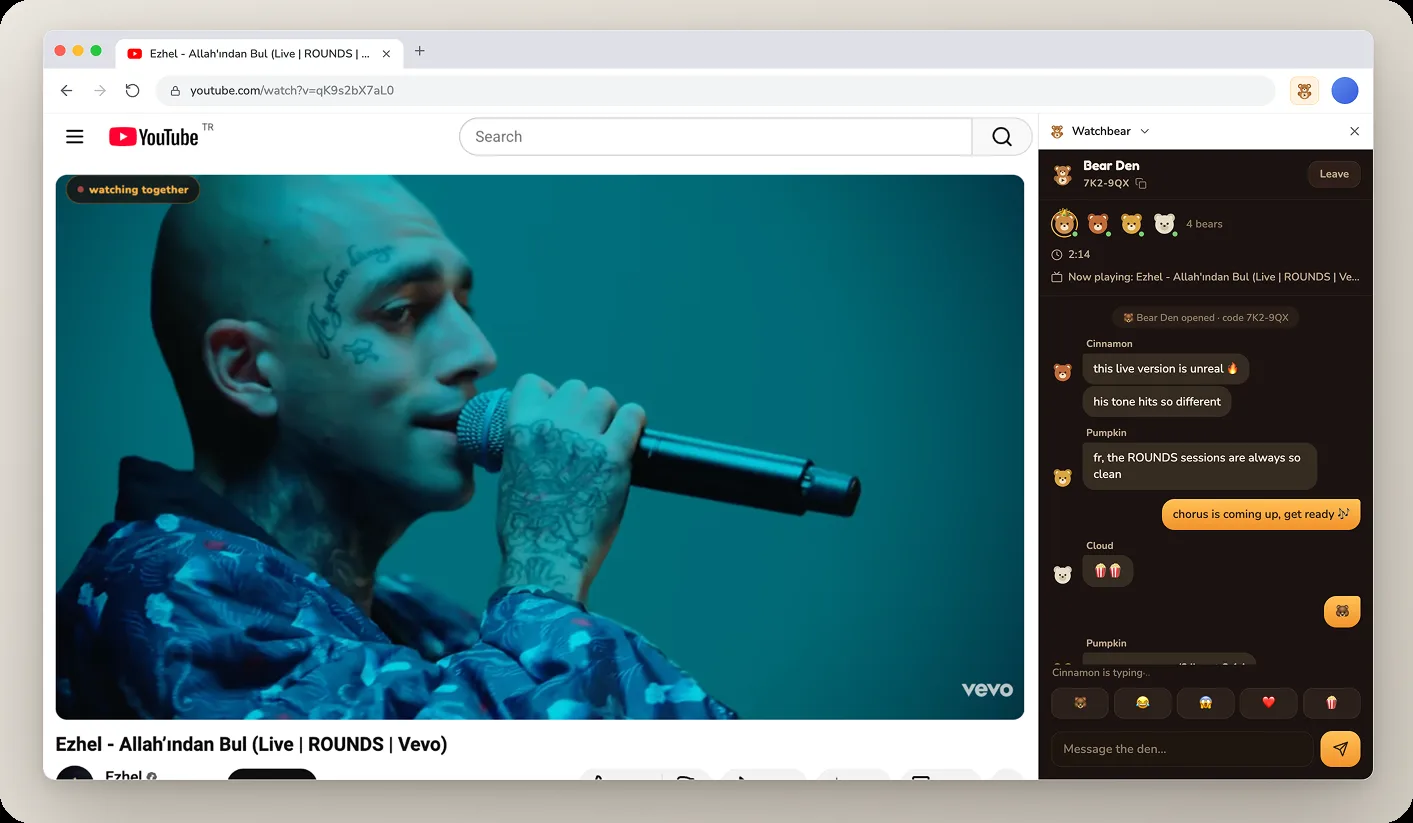
I build and ship Watchbear, a Chrome extension for watching videos with friends in sync. On the Chrome Web Store it has a Featured badge, 1,000 users and a 4.8 rating from 59 ratings. This post walks through how to develop a Chrome extension the way I do it, using Watchbear's real manifest as the example.
What you need
- Chrome, with Developer mode turned on at
chrome://extensions. - Node.js, if you want a build step (you will, once there's TypeScript or a framework).
- A Chrome Web Store developer account when you're ready to publish. It costs a one-time $5 registration fee.
Step 1: write the manifest
Every extension starts with manifest.json at its root. Chrome only accepts Manifest V3 for new extensions. The smallest useful one:
{
  "manifest_version": 3,
  "name": "Hello Extension",
  "version": "0.1.0",
  "description": "Shows a popup and logs every page you open.",
  "action": { "default_popup": "popup.html" },
  "background": { "service_worker": "background.js" },
  "content_scripts": [
    { "matches": ["<all_urls>"], "js": ["content.js"] }
  ]
}
description is capped at 132 characters, and that text is what people read under your name in the store, so write it like an ad, not a commit message.
Step 2: know where your code runs
This is the part that trips people up. An extension is not one program. It's several, each in its own world:
| Part | Runs in | Can do | Watchbear uses it for |
|---|---|---|---|
| Service worker | Background, no DOM | Chrome APIs, network, timers | Invite links, sign-in, alarms and reminders |
| Content script | Inside the web page | Read and change the page's DOM | Finding the <video> and keeping it in sync |
| Popup | Small window from the toolbar icon | A normal web page | Starting or joining a room |
| Side panel | Panel next to the page | A normal web page that stays open | Chat, reactions and the room |
| Offscreen document | Hidden page | DOM APIs the worker lacks | Work the service worker can't do alone |
The service worker doesn't live forever. Chrome stops it when it's idle and starts it again on the next event, so don't keep state in global variables there. Put it in chrome.storage.
Content scripts see the page's DOM but run in an isolated JavaScript world, so they can't see the page's own variables. They talk to the service worker with messages:
// content.js
const video = document.querySelector('video');
chrome.runtime.sendMessage({ type: 'video-found', paused: video?.paused ?? null });

// background.js
chrome.runtime.onMessage.addListener((msg, sender) => {
  if (msg.type === 'video-found') console.log('tab', sender.tab?.id, msg);
});
Step 3: real-world content scripts get complicated
Here is Watchbear's main content script entry, trimmed from its manifest:
{
  matches: ['<all_urls>'],
  js: ['src/content/main.ts'],
  run_at: 'document_idle',
  all_frames: true,
  match_about_blank: true,
  match_origin_as_fallback: true,
}
The three flags at the bottom are there because the video you want is often not in the page you're looking at. Embedded players put the real <video> inside a cross-origin iframe, some mount into a blank or srcdoc frame, and some live in frames whose URL matches nothing. Without all_frames and the two fallbacks, the extension simply never finds those videos.
A second entry runs on Netflix only, in the page's MAIN world instead of the isolated one:
{
  matches: ['*://*.netflix.com/*'],
  js: ['src/content/netflix-main.ts'],
  world: 'MAIN',
}
Netflix's player breaks when an extension writes video.currentTime directly, so seeking goes through Netflix's own player API, which only exists on the page's window. The isolated script passes the seek to the MAIN world script with postMessage. You won't find this in a tutorial. You find it when users report that seeking crashes the player on one site.
Step 4: ask for as few permissions as you can
Every permission shows up as a warning when someone installs your extension, and Google's review process says powerful permissions make reviews take longer. Watchbear asks for:
permissions: ['storage', 'activeTab', 'scripting', 'sidePanel', 'identity',
              'tabGroups', 'offscreen', 'alarms'],
optional_permissions: ['notifications'],
host_permissions: ['<all_urls>'],
<all_urls> is the expensive one. Watchbear needs it because it works on any site with a video player, not on a fixed list. If your extension only touches two sites, list those two.
notifications is optional on purpose. It's requested at runtime, when someone clicks "Remind me" for a movie night. Adding a required permission that brings a new warning in an update makes Chrome disable the extension until the user accepts the new warning, which is a good way to lose users. Optional permissions avoid that.
Step 5: use a build tool
Plain JavaScript works for a small extension. Once you want TypeScript, React or hot reload, use a bundler that understands extensions. Watchbear uses Vite with @crxjs/vite-plugin: the manifest is a TypeScript file, and the plugin bundles every entry it references (service worker, content scripts, popup, side panel) and writes a matching manifest.json into dist.
// vite.config.ts
import { defineConfig } from 'vite';
import react from '@vitejs/plugin-react';
import { crx } from '@crxjs/vite-plugin';
import manifest from './manifest.config';

export default defineConfig({
  plugins: [react(), crx({ manifest })],
});
Having the manifest in TypeScript also lets it change per build. Watchbear's manifest pins a key, which keeps the extension ID the same in development and production. That matters because the OAuth redirect URL for sign-in is derived from the extension ID.
Step 6: load it and test it
During development, open chrome://extensions, turn on Developer mode, click Load unpacked and pick the dist folder. After a change, rebuild and hit the reload icon on the extension's card. Content scripts only reach pages loaded after the reload, so refresh the tab too.
For automated tests, Playwright can launch Chrome with your unpacked extension in a persistent context. Watchbear has unit tests with Vitest and end-to-end tests with Playwright that build the extension in a test mode first.
Step 7: publish to the Chrome Web Store
- Register a developer account and pay the $5 fee.
- Zip the contents of your build folder, so
manifest.jsonsits at the root of the zip, not inside a folder. - In the developer dashboard, create an item and upload the zip.
- Fill in the listing: description, category, screenshots, a small promo tile, and a privacy section that explains every permission and what data you collect.
- Submit for review. Google gives no fixed turnaround, and broad host permissions make it slower.
Watchbear's release runs on GitHub Actions: pushing a tag like v0.12.0 builds the extension, zips dist with the manifest at the root and attaches the zip to a GitHub release. Uploading to the store is still a manual step in the dashboard.
Two listing details that paid off:
- Localize the name and description. With
"name": "__MSG_extName__"and a_locales/<lang>/messages.jsonper language, each store language gets its own title and summary. - Keep the store copy in the repo. Watchbear's listing text lives in
docs/store-listing/next to the code, one file per language, so changes are reviewed like code and nothing lives only in the dashboard.
What I'd tell someone building their first extension
- Start with a popup and one content script. Add the service worker when you need something to outlive the page.
- Decide early whether you need
<all_urls>. It changes your review and your install warning. - Test on real sites, inside iframes, not only on a page you wrote.
- Ship early and keep versioning honest. Watchbear is still on 0.x, and every release goes out as a tagged build.
I wrote about why I built Watchbear in this post, and Watchbear's own blog explains the Chrome side panel from a user's side. If you need a Chrome extension built, that's one of the things I take on as a freelance full-stack developer.
FAQ
How much does it cost to publish a Chrome extension?
A one-time $5 registration fee for the Chrome Web Store developer account. There's no yearly fee and no charge per extension.
How long does Chrome Web Store review take?
Google doesn't promise a fixed time. Its documentation says review times vary and that extensions asking for powerful permissions take longer to review.
Do I need a framework to build a Chrome extension?
No. Plain HTML, CSS and JavaScript work. A build tool like Vite with @crxjs/vite-plugin helps once you use TypeScript or a UI framework.
Can a Chrome extension run on other browsers?
Chromium-based browsers like Edge use the same extension format, so the same code usually works there with small changes. Each store has its own listing and review.